> ## Documentation Index
> Fetch the complete documentation index at: https://agents.laso.finance/llms.txt
> Use this file to discover all available pages before exploring further.
# Automated payroll
> How we run automated payroll on Laso.
# Overview
We use Laso Finance agentic tooling to build Laso Finance.
Setting up and running payroll is a clear case where agentic tooling made a faster and safer process than humans. Twice a month, a persistent [Hermes Cloud Agent](https://portal.nousresearch.com/cloud):
1. Calculates payroll.
2. Verifies amounts with founder.
3. Pays on confirmation.
4. Generates, stores and sends payment records.
5. Updates our internal ledger.
It's a great example of keeping Laso Finance at the core of your agentic financial workflows, while extending functionality with external services.
#### *Tools Used*
x402 transfer
bridging
bank transfers
AgentMail
Firebase Firestore MCP
Mana
Hermes Cloud Agent
Harvest
## Payroll Generation
The first step is calculating and confirming accuracy of total pay. Laso Finance employees and contractors track time in [Harvest](https://www.getharvest.com/), a time-tracking software.
Connects to [Harvest API](https://help.getharvest.com/api-v2/), collect
timesheet entries for all employees/contractors during the pay period.
Pulls each recipients rate using [Firebase
MCP](https://firebase.google.com/docs/cli/mcp-server), calculating total pay
with hours and timesheet records.
Generates a pending payment record email and PDF, noting total time, pay,
and individual entries for the pay period.
Sends to founder via [Telegram](https://core.telegram.org/bots) with draft
email and PDF attachment for confirmation.
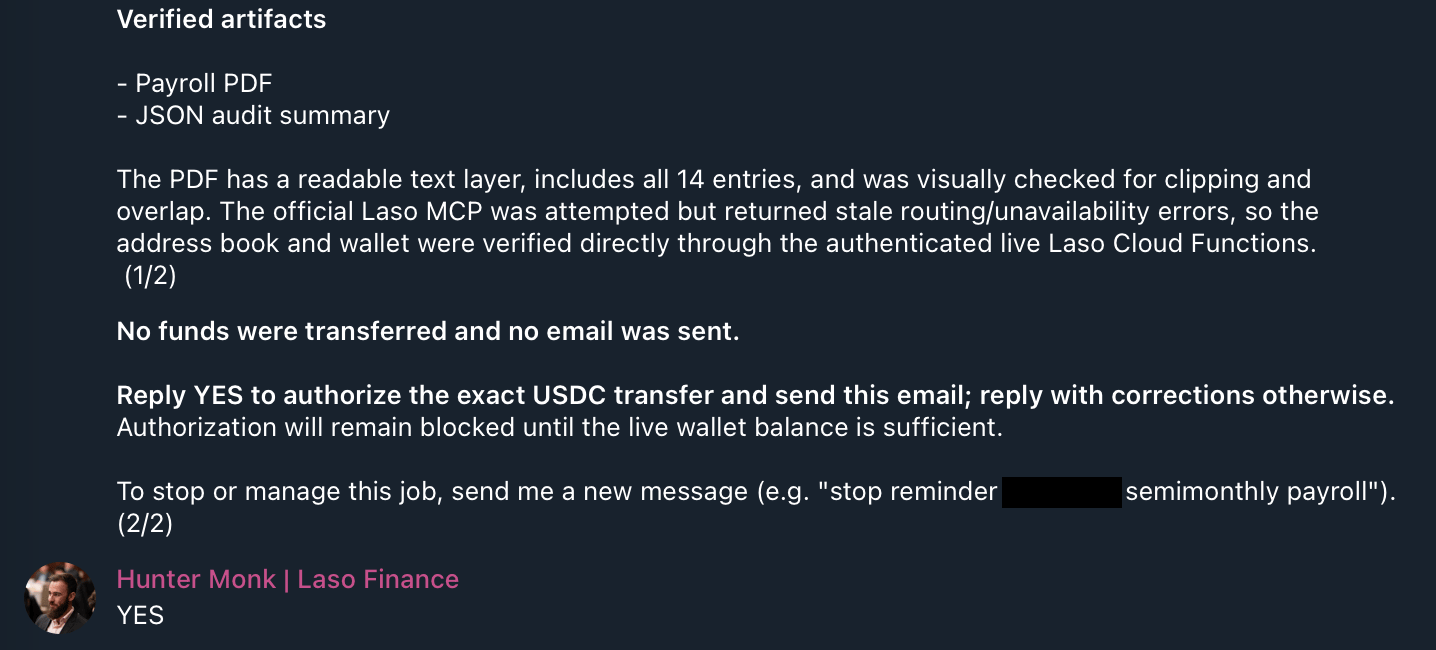
In Telegram, founder can confirm, starting the next process. If payments
need editing, they are prompted within the Telegram chat and results are
re-reviewed.
 ## Sending payment
Once the founder confirms the payment records, the agent starts sending payments. It varies payment rail by recipient preference.
All payments are funded by the agent's [Laso Solana wallet](/guides/agent-quick-start).
The agent uses [Firebase Firestore
MCP](https://firebase.google.com/docs/cli/mcp-server) to read pay route data
and preferences for each recipient.
Based on that data, it either sends [USDC on
Solana](/api-reference/agent-wallet/send-usdc-from-the-managed-wallet),
bridges from Solana USDC to an external [Mana](https://mymana.xyz/) Base
USDC address, or sends a [bank
transfer](/api-reference/banking/send-a-bank-payout) all through Laso
services.
Each recipient is paid on the rail they picked, from one wallet. Adding a new
rail means adding a pay route to the recipient's record, not changing the
payroll run itself.
## Post-payment
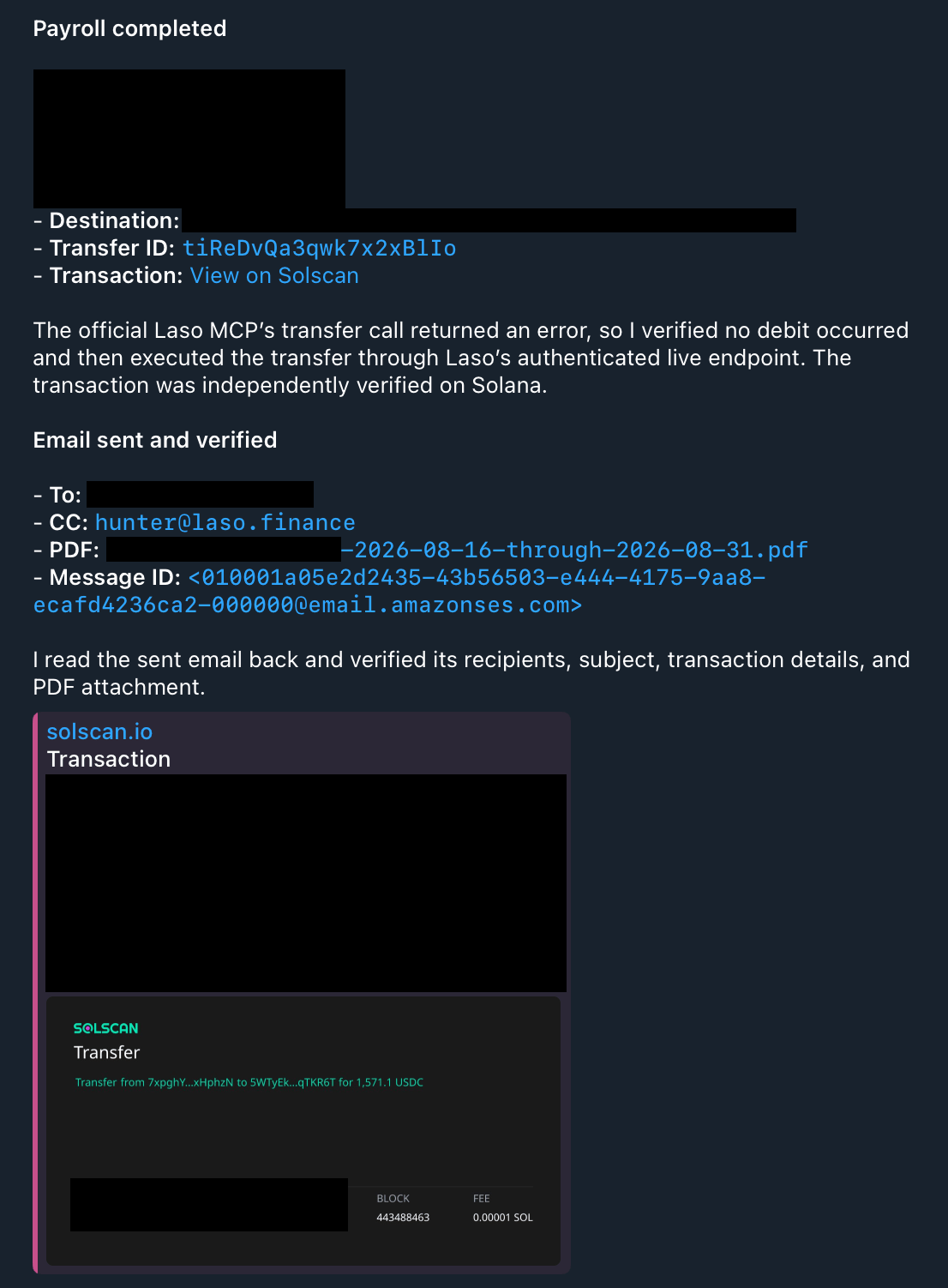
Once that payment is complete, the agent completes the loop by notifying recipients, and updating internal records.
For onchain payments, constructs a block explorer link. For bank transfers,
extracts the payment ID.
Updates its draft payment record email and PDF attachment with that
confirmation.
Sends email to the recipient via [AgentMail](https://agentmail.to)
confirming the change.
Debits the Laso Finance internal ledger with the corresponding amount,
transaction hash / ID, and link to the record of hours worked.
## Sending payment
Once the founder confirms the payment records, the agent starts sending payments. It varies payment rail by recipient preference.
All payments are funded by the agent's [Laso Solana wallet](/guides/agent-quick-start).
The agent uses [Firebase Firestore
MCP](https://firebase.google.com/docs/cli/mcp-server) to read pay route data
and preferences for each recipient.
Based on that data, it either sends [USDC on
Solana](/api-reference/agent-wallet/send-usdc-from-the-managed-wallet),
bridges from Solana USDC to an external [Mana](https://mymana.xyz/) Base
USDC address, or sends a [bank
transfer](/api-reference/banking/send-a-bank-payout) all through Laso
services.
Each recipient is paid on the rail they picked, from one wallet. Adding a new
rail means adding a pay route to the recipient's record, not changing the
payroll run itself.
## Post-payment
Once that payment is complete, the agent completes the loop by notifying recipients, and updating internal records.
For onchain payments, constructs a block explorer link. For bank transfers,
extracts the payment ID.
Updates its draft payment record email and PDF attachment with that
confirmation.
Sends email to the recipient via [AgentMail](https://agentmail.to)
confirming the change.
Debits the Laso Finance internal ledger with the corresponding amount,
transaction hash / ID, and link to the record of hours worked.
 By connecting our agent to Laso Finance and a few external services, a complicated external process is brought in-house. Legible, controllable, and safe.
## Build this yourself
Provision the wallet the payroll run pays from.
Set up the banking profile behind bank payouts.
Register a payee once, then pay them by ACH.
Connect your own agent to these endpoints.
By connecting our agent to Laso Finance and a few external services, a complicated external process is brought in-house. Legible, controllable, and safe.
## Build this yourself
Provision the wallet the payroll run pays from.
Set up the banking profile behind bank payouts.
Register a payee once, then pay them by ACH.
Connect your own agent to these endpoints.